Custom Detail Panel and Component Visualizer
An Unreal Engine editor tool that lets the whole team create and edit grindable splines on meshes, with a component visualizer and a custom Slate detail panel.
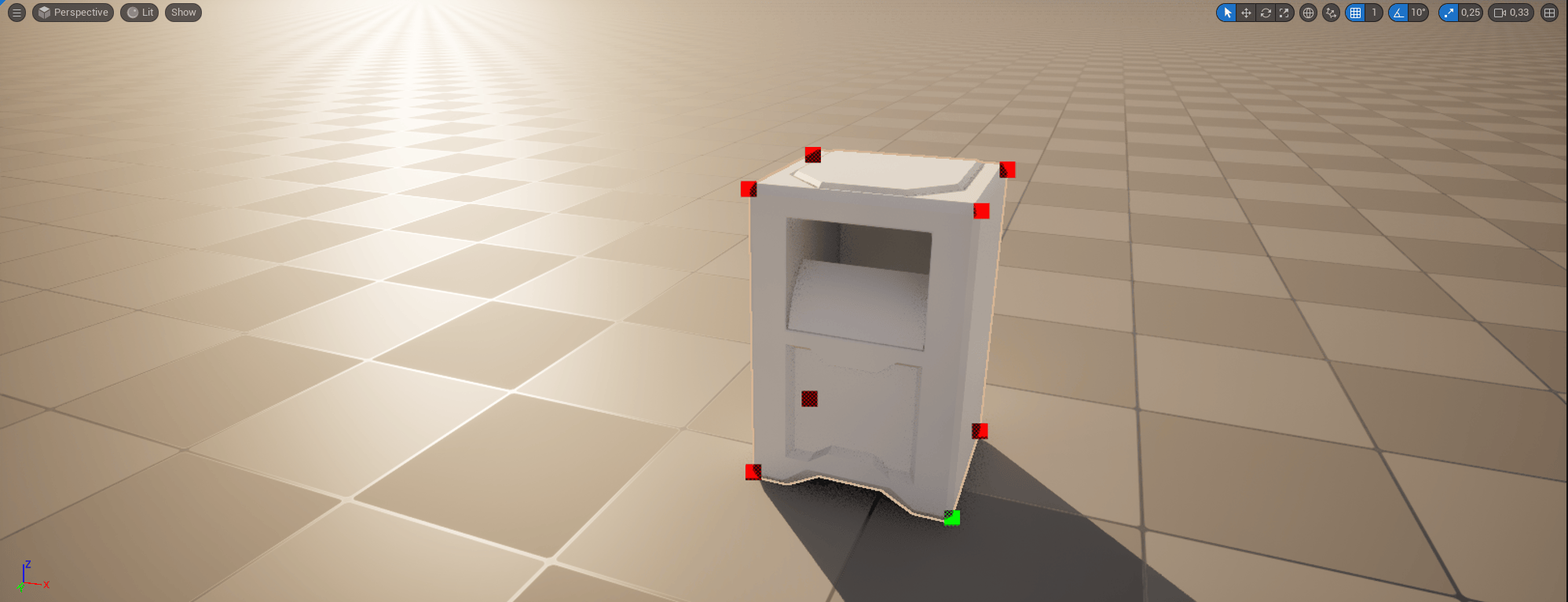
In my last year of Digital Arts And Entertainment we had a group project. I did some preparation for this over the summer.
I wanted to build an editor tool in Unreal Engine to edit and visualize some data. Since we were making a skater game, I wanted our team to be able to edit and create splines on meshes that the player could grind on.
Luckily Unreal has some interfaces for this, mainly:
FComponentVisualizer: to visualize and edit dataIDetailCustomization: to make a custom detail panel
All of this code is only used inside the Unreal Editor, not in the game. So I made a custom module that is only available in the editor. In this module you can register the Component Visualizer and the custom detail panel to the component.
void FGrindEditorModule::StartupModule()
{
	if (GUnrealEd)
	{
		const TSharedPtr<FGrindVisualizer> Visualizer = MakeShareable(new FGrindVisualizer);

		if (Visualizer.IsValid())
		{
			GUnrealEd->RegisterComponentVisualizer(UGrindComponent::StaticClass()->GetFName(), Visualizer);
			Visualizer->OnRegister();

			FPropertyEditorModule& PropertyModule = FModuleManager::GetModuleChecked<FPropertyEditorModule>("PropertyEditor");
			PropertyModule.RegisterCustomClassLayout(UGrindComponent::StaticClass()->GetFName(), FOnGetDetailCustomizationInstance::CreateStatic(&FGrindComponentDetails::MakeInstance));
		}
	}
}
Now that it’s initialized, some cleanup is also necessary. You can do that when the module shuts down:
void FGrindEditorModule::ShutdownModule()
{
	if (GUnrealEd)
	{
		GUnrealEd->UnregisterComponentVisualizer(UGrindComponent::StaticClass()->GetFName());
	}

	if (FModuleManager::Get().IsModuleLoaded("PropertyEditor"))
	{
		auto& PropertyModule = FModuleManager::LoadModuleChecked<FPropertyEditorModule>("PropertyEditor");
		PropertyModule.UnregisterCustomClassLayout(UGrindComponent::StaticClass()->GetFName());
	}
}
FComponentVisualizer
First, I used the FComponentVisualizer to visualize and edit the data I wanted.
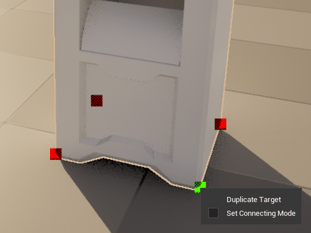
As the component is added to a mesh, it uses the collision mesh to calculate the outer points of the mesh and visualize those. Then you can do the following to the points:
- Move
- Edit
- Remove
- Add
- Connect
You can even add a right-click menu and shortcuts for this.
IDetailCustomization
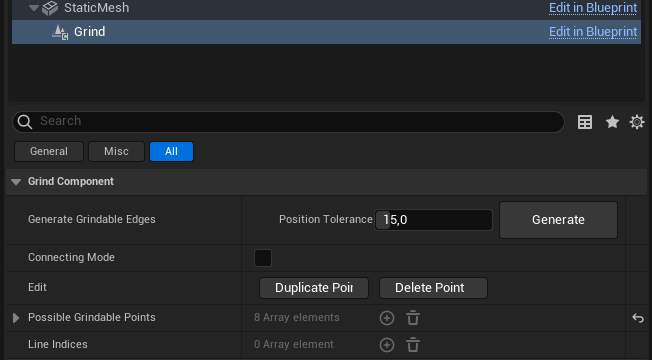
We can also create a custom detail menu using Slate. It wasn’t strictly necessary for this project, but I wanted to learn more about it, and it also cleans up the detail panel quite a bit.
I created some text, a button, and a slider. This was all mapped to the values and functions of the component.
Now, with this tool, everyone on the team can easily edit the grindable lines for the skateboard, saving us quite a bit of time.